Use your DJI Osmo Pocket as a webcam on a Mac
Turn a DJI Osmo Pocket 3, 4 or 4P into a Mac webcam for Zoom, Google Meet and OBS over USB-C, then aim, zoom and frame it from your desk.
By Kerim Embel, maker of Pocketframe4 min read
Quick answer
Connect the Pocket with a USB-C data cable, choose Webcam on the camera, and it appears as a camera on your Mac. Pick it in Zoom, Meet or OBS, and use Pocketframe to aim, zoom and frame it without touching the camera.
What you need
- A DJI Osmo Pocket 3, 4 or 4P
- A USB-C data cable (charge-only cables carry no video)
- A Mac with macOS 14 Sonoma or later
- Pocketframe (free) to aim and frame from the Mac
The Osmo Pocket is a better desk camera than most webcams: a bigger sensor than a laptop camera, a real three axis gimbal and sharp video up to 4K. Plugged into a Mac it already works as a webcam. What it lacks on its own is control, because aiming and zooming mean reaching over and touching the camera while you are on screen. This guide covers both parts: getting the picture onto your Mac, and running the camera from your desk.
Connect the Pocket over USB-C
- Step 1: Plug in a USB-C data cableConnect the Pocket to your Mac. Use a cable that carries data: many charging cables do not, and then no video arrives.
- Step 2: Choose Webcam on the cameraWhen the Pocket asks how to use the connection, tap Webcam. The camera now shows up on your Mac like any USB camera, with no driver to install.
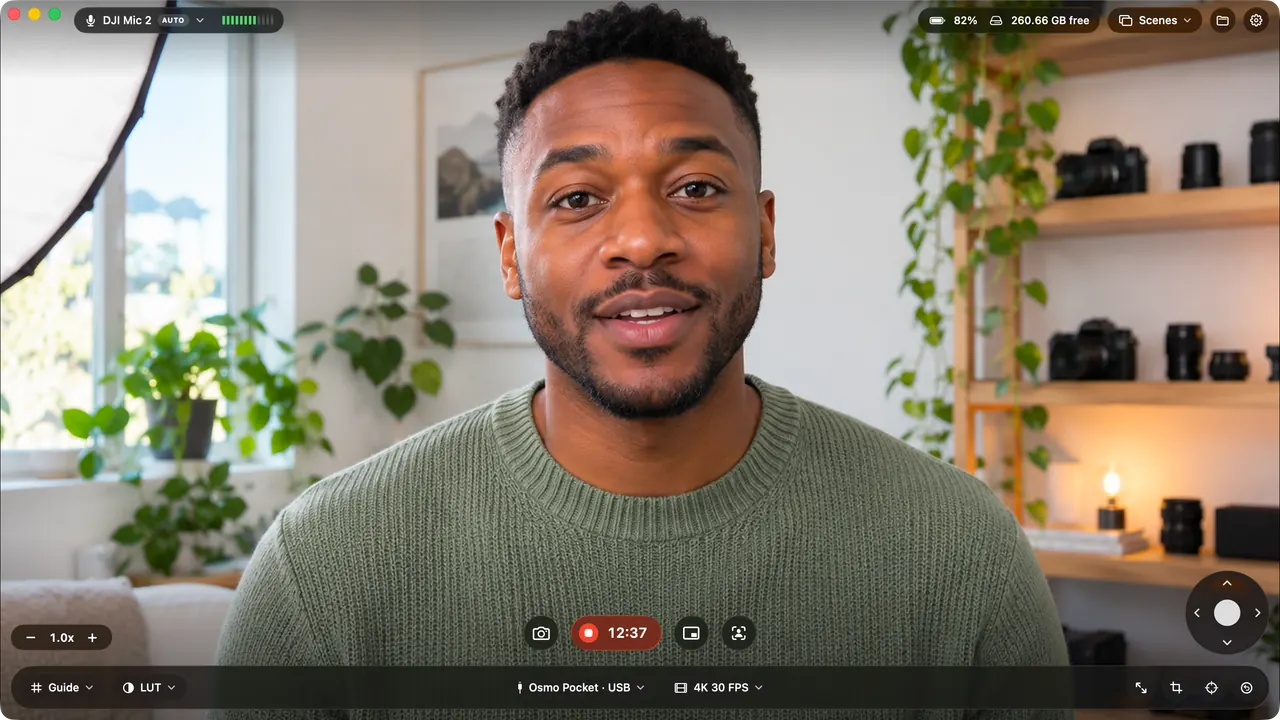
- Step 3: Open PocketframeDownload Pocketframe and open it. It finds the Pocket on its own and shows the live preview in its window and in the MacBook notch.
- Step 4: Pick the Pocket in your video appIn Zoom, Google Meet, OBS or Ecamm Live, open the camera settings and choose the Osmo Pocket from the list.
Aim, zoom and frame from your desk
With Pocketframe open you never have to reach for the camera. Drag the preview to point the gimbal, scroll on it to zoom, or steer with the arrow keys. Press C to center the gimbal again. The controls also live in the notch, so they stay out of the way of the app you are presenting in.
| Keys | Action |
|---|---|
| Drag | Aim the camera |
| Scroll or + − | Zoom in and out |
| ← ↑ → ↓ | Move the gimbal |
| C | Center the gimbal |
| ⇧⌘F | Flip the camera to face you |
| ⌘T | Face tracking on or off (Pro) |
Get a better picture
- Put the Pocket at eye level, about an arm's length away. A small tripod or a desk clamp is enough.
- Light your face from the front. A window or a lamp behind the camera beats a bright window behind you.
- Use 1080p for calls to keep things smooth, and record in 4K when you want the sharpest result.
- Turn on face tracking (Pro) if you lean, stand up or move around while you talk.
Questions
Does the Osmo Pocket need a driver to work as a Mac webcam?
No. In Webcam mode the Pocket is a standard USB camera, so macOS uses it without a driver. Pocketframe adds control over the gimbal, zoom and framing.
Why does my Mac not see the Pocket?
Most often the cable carries power but no data. Try a USB-C data cable, then reconnect and choose Webcam on the camera.
Can Zoom use the Pocket over Wi-Fi?
No. Video apps see the Pocket as a camera only over USB-C. Wi-Fi mode is for Pocketframe's own preview, control and recording.