Stream with OBS and a DJI Osmo Pocket on a Mac
Set up a DJI Osmo Pocket as your camera in OBS on a Mac, then switch camera angles live with Scenes and steer the gimbal from the notch while you stream.
By Kerim Embel, maker of Pocketframe5 min read
Quick answer
Connect the Pocket over USB-C in Webcam mode, add it to OBS as a Video Capture Device, and keep Pocketframe open to steer the camera, switch saved angles with Option 1 to 9 and track your face during the stream.
What you need
- A DJI Osmo Pocket connected over USB-C in Webcam mode
- OBS Studio for macOS
- Pocketframe, with Pro for Scenes and face tracking
Streaming with a gimbal camera opens up shots a webcam cannot do: a wide shot of your desk, a close shot for talking, a top-down shot of your hands. The hard part is changing them while you are live. Pocketframe handles the camera so OBS can handle the stream.
Add the Pocket to OBS
- Step 1: Connect the Pocket over USB-CUse a data cable and choose Webcam on the camera.
- Step 2: Add a Video Capture DeviceIn OBS, click + under Sources, choose Video Capture Device and pick the Osmo Pocket as the device.
- Step 3: Choose a resolution1080p at 30 fps is a good default for streaming. Higher resolutions use more of your upload.
- Step 4: Keep Pocketframe openUse it to aim, zoom and track while OBS shows the camera.
Switch angles live with Scenes
Before you go live, aim the camera for each shot you want and save it with ⇧⌘S. During the stream, press ⌥1 to ⌥9 and the gimbal glides to that angle on its own. Your viewers see a smooth camera move instead of a hand reaching into the shot.
| Keys | Action |
|---|---|
| ⇧⌘S | Save the current angle as a Scene |
| ⌥1 … ⌥9 | Glide to Scene 1 to 9 |
| ⌘T | Face tracking on or off |
| C | Center the gimbal |
Control from the notch
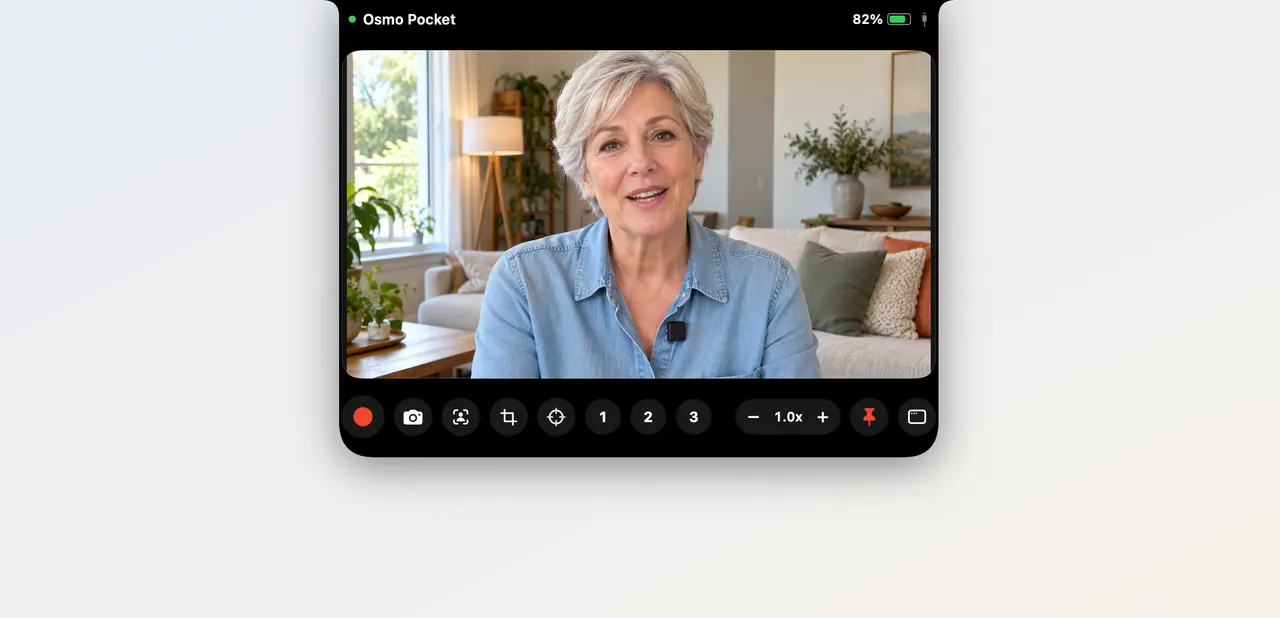
OBS usually fills your screen. Pocketframe's notch panel drops down when you hover the MacBook notch, with a live preview, record, zoom, tracking and your Scenes. Move away and it tucks back in, so nothing covers OBS.
Questions
Can OBS and Pocketframe use the Pocket at the same time?
Yes. OBS shows the camera while Pocketframe steers the gimbal, switches Scenes and tracks your face.
Does this work with Ecamm Live or Zoom?
Yes. Any app that lets you pick a camera can use the Pocket over USB-C.