Record your screen and camera in one take on a Mac
Record your Mac screen and your face in one take. Get the raw files plus a finished video with a camera bubble and auto zoom on every click.
By Kerim Embel, maker of Pocketframe5 min read
Quick answer
Turn on Screen and Camera recording in Pocketframe with Shift Command R, pick a corner for your camera bubble and press Command R. Each take saves Screen.mov, Camera.mov and a Combined.mov that zooms to your clicks.
What you need
- Pocketframe Pro
- A DJI Osmo Pocket, connected over USB-C for the best sound
- Screen Recording permission for Pocketframe
- macOS 14 Sonoma or later
Tutorials, courses and product demos need two things at once: your screen and your face. The usual way is two recordings, one with QuickTime or a screen recorder and one from the camera, and then an evening in an editor lining them up and adding zooms by hand. Pocketframe records both in one take and does the boring part for you.
Record a take
- Step 1: Turn on Screen and CameraClick the screen button next to the record button, or press ⇧⌘R. The record button shows a SCREEN badge while the mode is on.
- Step 2: Allow screen recording onceThe first time, macOS asks for permission. Allow Pocketframe under System Settings › Privacy & Security › Screen & System Audio Recording (called Screen Recording on macOS 14).
- Step 3: Place your cameraChoose Circle for a round camera bubble or Cutout to stand in front of your screen, then a corner and a size. For the circle you can blur or remove the room behind you. Leave Auto Zoom on Clicks on, and turn on Include Mac Sound if your demo has audio.
- Step 4: Press ⌘RA three second countdown gives you time to get ready, then Pocketframe records the screen you chose and the Pocket together.
- Step 5: Press ⌘R again to stopPocketframe builds the combined video and shows the take in Finder, in Movies › Pocketframe.
What you get
- Screen.mov: your screen, at up to 3840 pixels wide.
- Camera.mov: the Pocket, with your voice.
- Combined.mov: the finished video, with you in a round bubble or a cutout and auto zoom applied. Ready to post.
- All three line up to the frame, so you can also edit them yourself in Final Cut Pro, Premiere or DaVinci Resolve.
How auto zoom works
Pocketframe records where your cursor is and when you click. After you stop, it plans a smooth camera path for the combined video: it zooms in about 1.8x toward each click, starting a moment before you click, follows your cursor while you work and eases back out when you pause. Clicks that come close together stay in one zoom instead of bouncing in and out, and clicks on Pocketframe itself are ignored. The motion uses springs without overshoot, so it feels calm rather than jumpy.
Tips for a clean tutorial
- Turn on a Focus mode so notifications do not pop up in the recording.
- Click on purpose. Auto zoom follows clicks, so a deliberate click is a cue for the viewer.
- Make the cursor bigger in System Settings › Accessibility › Display if you record a large screen.
- Use USB-C for the camera, so your voice comes from the Pocket or your DJI Mic. Over Wi-Fi, pick a Mac microphone at the top left.
Questions
Does Pocketframe show up in the screen recording?
No. Pocketframe's own windows, including the notch panel, are left out of the screen recording.
Can I remove the room behind me?
Yes. Choose Blur or Remove for the circle, or switch to Cutout to stand in front of your screen. You see the result live in the preview before you record, and it runs on your Mac. For the cleanest edges, light your face well and keep some distance from the wall.
Can I edit the screen and camera separately?
Yes. Every take keeps Screen.mov and Camera.mov in sync next to the combined video, so you can edit them in any video editor.
Can I record a second display?
Yes. When more than one display is connected, choose which one to record in the screen recording panel.
Is screen and camera recording free?
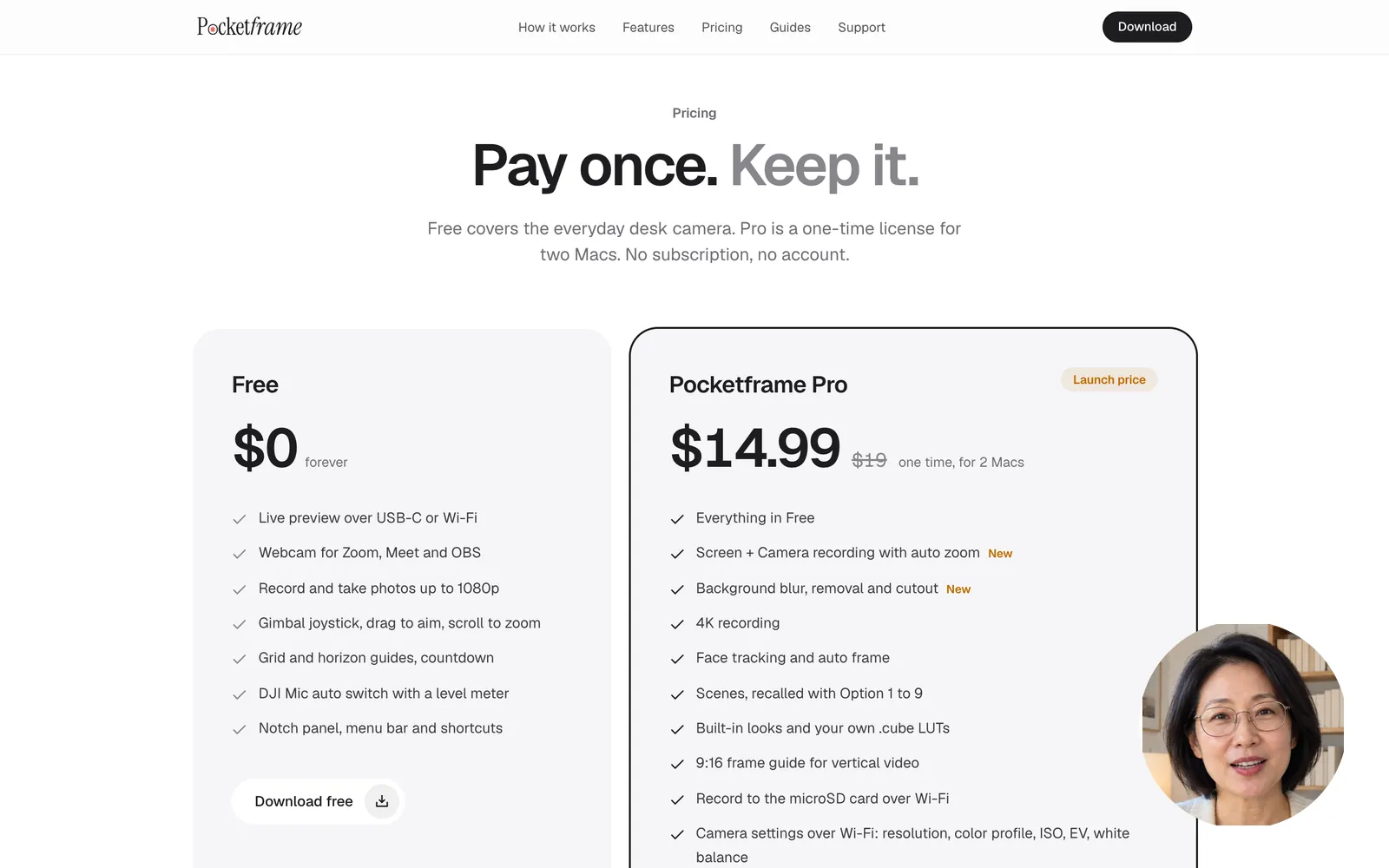
It is part of Pocketframe Pro, a one-time purchase for two Macs.